
How much structure you build around that depends on your organization's policy and risk tolerance, but every setup starts from the same question: how do you get uploaders to tell QBank what AI involvement an asset actually has, without making upload painful enough that people stop doing it honestly.
Whichever level you land on, it all lives in one place: a property set called AI information. This article covers what goes into it, in order, from the floor up.
The floor: a checkbox plus one more field
A checkbox is a reasonable place to start. It's a low-friction way for uploaders to flag that AI was involved at all.
On its own, though, a checkbox only tells you AI was involved somewhere, not how much. That distinction matters once review, disclosure or distribution rules start depending on it, so we'd recommend pairing the checkbox with a second field, AI involvement, using four values:
- Fully AI-generated
- AI-assisted
- No AI involvement
- Unknown / Not assessed
Set Unknown / Not assessed as the default. If the checkbox is ticked, the uploader updates the field to whichever of the other values applies. This keeps an unchecked box from being read as confirmation that no AI was used. It just means nobody has assessed it yet.
This gets you a simple upload experience while already producing metadata you can search, filter into dynamic folders, and act on later. It's a genuine floor, though, not the full picture.
Going further: rounding out the AI information set
The next level adds a few fields to the same property set, still built from a small number of fields people will actually fill in consistently:
- AI tool. A controlled list where possible, rather than free text, so it stays usable for filtering later.
- Created by. The person or team responsible for the asset.
- Creation date. When the AI-related work happened.
- Source of metadata. Whether the AI information came from an embedded manifest, XMP/IPTC, or manual entry. This one matters more than it looks: a value that came from a validated manifest deserves more trust than one someone typed in from memory.
- Disclosure requirement. Fixed values such as None, Label required, Manifest required, Label and manifest required.
This is usually enough for most organizations to run a working AI governance setup: you know what was used, who's responsible, when, how confident you can be in the data, and what disclosure it needs.
If your policy needs to go stricter still, for example because approvals or distribution control need to be enforced through metadata rather than process alone, the same property set can grow to include an approval status, an approved channels field, and a media picker linking back to source assets. That's a further step past what most teams need day one, so it's not the focus here.
Download the AI Content Policy Guide here or the more practcal guide on how to build the AI content Policy in QBank.
Automating classification with Content Credentials (C2PA)
Manual entry is the fallback, not the goal. Where an asset carries a valid C2PA manifest (also referred to as Content Credentials), some of this classification doesn't need a human to type it in at all.
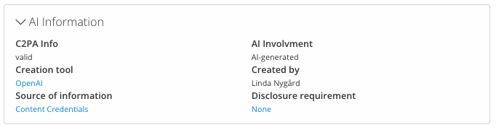
A manifest can carry information such as whether it's currently valid, which tool created or edited the asset, and where that provenance information came from. Mapped into the AI information property set through data mapping, that can look something like this on the asset:
- C2PA info: Valid
- Creation tool: OpenAI
- Source of information: Content Credentials
- AI involvement: AI-generated
- Created by: [uploader or team]
The point of the source of metadata field is exactly this: it lets you distinguish a value QBank read from a verified manifest from one a human filled in manually, which is a meaningful difference if that metadata ever has to hold up in an audit or a disclosure decision. Where manifest data is available and reliably readable, mapping it automatically also removes the guesswork for the uploader entirely, so it's worth treating as the direction to grow toward even if you start with manual entry. This is included for all customers. If you don't see data mapping options in your admin page, that's a user group or permission setting rather than something unavailable to you, so reach out to your account manager to get it enabled. See Map embedded metadata to QBank Property fields for how mapping sets are configured under Data Mapping in the admin area.
Where the metadata gets used
Once AI involvement is captured as structured metadata rather than a note in a filename, it starts doing real work. Dynamic folders can surface exactly what needs attention, AI content awaiting classification, or content missing a disclosure setting, updating automatically as metadata changes. Search benefits the same way any other structured metadata does: filter by tool, by involvement type, by whatever fields you've added.
Building it in QBank
This is standard property and metadata configuration, not custom development. The order matters: the property set comes first, the properties get built inside it.
- Create the property set first. In the admin area, create a new property set and name it AI information. This is the container everything else goes into, so start here before creating any individual field. Save it before moving on. See How to set up a new Property Set in QBank for the exact steps.
- Create the properties inside that property set. Add a Checkbox property for AI involvement (yes/no), then a Dropdown property for the AI involvement values, with the default set to Unknown/Not assessed. Add the further fields (AI tool, created by, creation date, source of metadata, disclosure requirement) the same way, as Dropdown, List, Textrow or Date properties depending on the field. Save after each property, and again once the set is complete — QBank won't hold onto unsaved changes if you navigate away mid-setup. See How to set up a new Property in QBank and Guide: Understand the property input options in QBank for picking the right type per field.
- Attach the property set to the relevant object types, not categories directly, typically images, video, audio and documents, wherever AI content can appear. Object types are what's connected to a category, so this is what actually determines whether the AI information fields show up for assets in that category. See How to create an object type and how you link property sets for how that link is made, including connecting the object type to your main categories.
- Use mandatory-field logic where you need enforcement. QBank supports mandatory field rules with conditional logic, which is the mechanism for requiring, say, AI involvement to be updated once the checkbox is ticked. This is included for all customers. If you don't see the conditional logic options in your admin page, that's a user group or permission setting rather than something unavailable to you, so reach out to your account manager to get it enabled.
- Use business rules to derive metadata automatically, once you're ready to automate on top of the AI information set. In QBank, a business rule works on "if this metadata value is set, then also set this other metadata value" logic, for example if AI involvement is set to Fully AI-generated, automatically setting disclosure requirement to Label required. It's a way to keep related fields consistent without relying on the uploader to fill in every field by hand, not a way to route assets to an approver or trigger a notification, those aren't things business rules do in QBank today.
- Build dynamic folders as your governance surfaces, filtered on the fields in the AI information set, so the folders themselves become the review queues without extra workflow machinery. A few that tend to be useful from day one:
- AI content awaiting classification, filtered on AI involvement = Unknown/Not assessed, so anything nobody has looked at yet surfaces on its own.
- AI content missing a disclosure setting, filtered on disclosure requirement = has no value, combined with AI involvement not equal to No AI involvement, to catch assets that were classified but never got a disclosure rule attached.
- Fully AI-generated content, filtered on AI involvement = Fully AI-generated, for whoever needs a standing view of what's carrying the most disclosure exposure.
NOW AVAILABLE:
We have also developed conditional labels and watermarks in image templates. QBank can now add an AI label automatically based on an asset's metadata, such as AI involvement or disclosure requirement.
Learn how in this article ››
None of this needs to be built perfectly on day one. The setup that matters is the one people understand, trust and actually use, and the AI information property set can grow field by field as your policy demands more of it.