
Overview
The Place image command in an image template adds an image, such as a watermark, label or logo, on top of the media when it is converted. You can now set a condition on each Place image command. QBank then checks the asset's metadata at conversion, and adds the image only when the condition is met.
This means one image template can handle many cases. You no longer need a separate template for each variant.
Typical uses:
- Add an AI disclosure label only to AI-assisted or AI-generated content
- Add the right logo depending on which brand an asset belongs to
- Add a market or region marking, for example only on assets for the EU
- Add a "For internal use" watermark only on assets with a specific usage right
The examples in this article use AI labels, but the setup is the same for any property.
How it works
- Each Place image command can have its own condition under Only apply when.
- When an asset is converted, QBank compares the asset's property values with the condition.
- If the condition is met, the image is placed.
- If the condition is not met, the command is skipped. The asset is still converted, just without that image.
- If the asset has no value in the property, the condition counts as not met and the command is skipped.
- A Place image command without a condition is always applied. Existing templates work exactly as before.
- Each command is evaluated on its own. In a template with several commands, some can be applied and others skipped for the same asset.
The condition is checked whenever the template is used: when media is published to a deployment site, downloaded or converted on upload.
Before you start
- You need access to image template administration.
- The property you want to use in the condition must exist and be filled in on the assets. Assets without a value will not get the image.
- Prepare the image to place in the right size. QBank uses the original file "as is" and does not scale it. Use a transparent PNG for labels and logos.
- Upload the image to QBank so you can select it as the source.
Set up a conditional Place image command
- Open the image template you want to edit [confirm menu path].
- Add a Place image command, or open an existing one.
- Under Source of the image to place, click Click to select and choose your label or logo.
- Set opacity, position and offset (see field reference below).
- Under Only apply when, click New condition.
- Select a property, an operator and a value. The operators are the same as when you filter on that property in search, and depend on the property type.
- If you add more than one condition, choose Any (at least one must be true) or All (every condition must be true). Use New group to combine Any and All logic.
- Save the template.
To remove a condition, click the minus icon next to it. With no conditions left, the command applies to all media again.
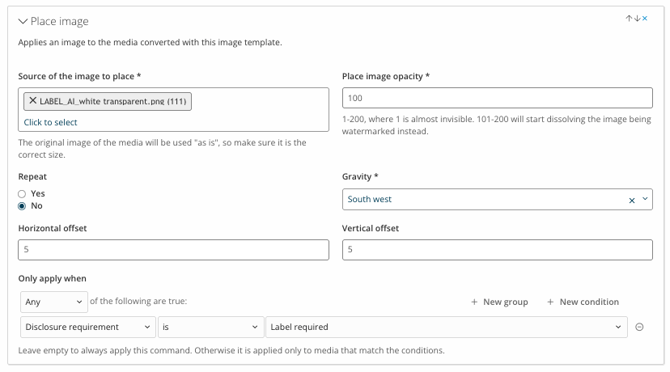
Field reference
| Field | What it does |
|---|---|
| Source of the image to place | The image that is placed on the media. Used in its original size. |
| Place image opacity | 1 to 200. 100 is fully visible, 1 is almost invisible. 101 to 200 instead starts dissolving the underlying image. |
| Repeat | Yes tiles the image across the media. No places it once. |
| Gravity | Where the image is anchored. For example, South west is the bottom left corner. |
| Horizontal / Vertical offset | Distance in pixels from the anchor point. |
| Only apply when | The condition. Leave empty to always apply the command. |
Example 1: One AI label for all AI content
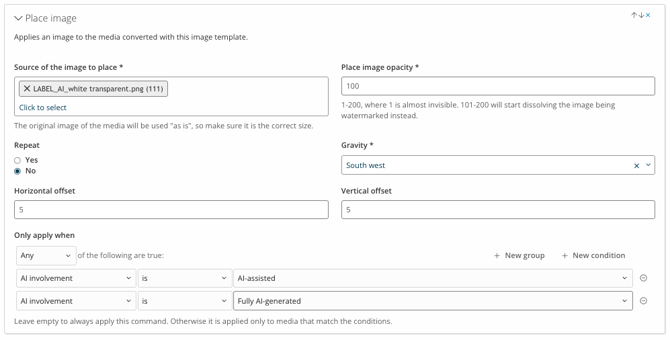
You want the same "AI" label on everything that has any AI involvement.
- Source: LABEL_AI_white transparent.png
- Gravity: South west, offset 5 / 5
- Only apply when: Any of the following are true
- AI involvement is AI-assisted
- AI involvement is Fully AI-generated
Assets set to AI-assisted or Fully AI-generated get the label. Assets with no AI involvement, or no value, do not.
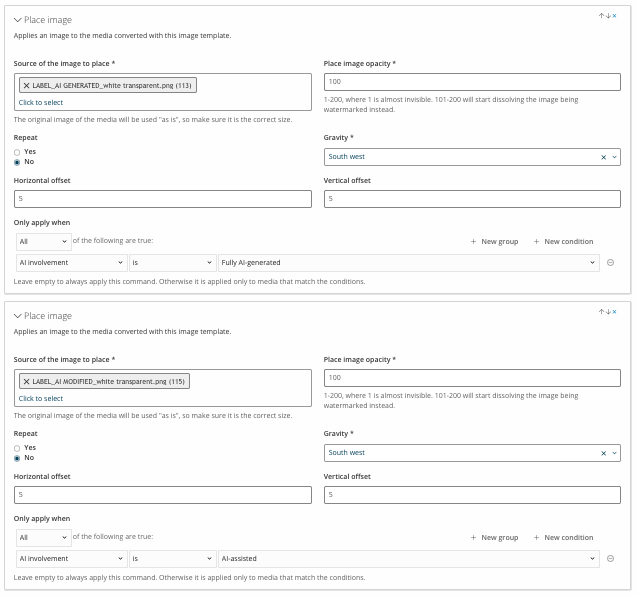
Example 2: Different labels depending on AI involvement
You want to show the type of AI involvement. Add two Place image commands to the same template, each with its own label and condition.
Command 1
- Source: LABEL_AI GENERATED_white transparent.png
- Only apply when: AI involvement is Fully AI-generated
Command 2
- Source: LABEL_AI MODIFIED_white transparent.png
- Only apply when: AI involvement is AI-assisted
Both commands use the same position. Since an asset only has one value in AI involvement, only one label is placed.
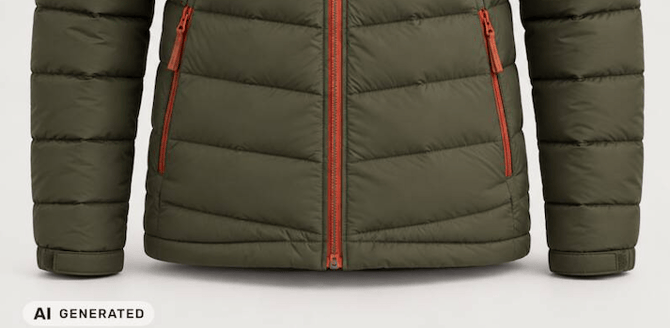
Result
The same template gives different results depending on each asset's metadata.
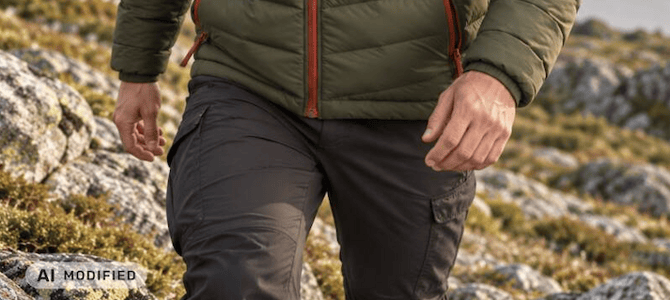
An asset with no AI involvement is converted without a label.
Example 3: Label based on a disclosure requirement
If you track disclosure separately from AI involvement, you can base the label on that decision instead.
- Source: LABEL_AI_white transparent.png
- Only apply when: Disclosure requirement is Label required
This lets a person decide which assets need a label, instead of basing it on the AI involvement alone.
Other examples
The same setup works for any property. For example:
- Brand logos: One Place image command per brand, each with the condition Brand is [brand name] and that brand's logo as source.
- Region: A marking with the condition Region is EU.
- Usage rights: A watermark with the condition Usage is Internal only.
Order of commands
You can add several Place image commands to one template. They are applied from top to bottom. A command further down is placed on top of the ones above it.
Use the arrows in the top right corner of each command to change the order.
If two images use the same position, place the one that should be visible on top last.
Good to know
- Conditions can use property values only. File name, title, category and hierarchical properties cannot be used in conditions.
- The operators "between" and free text search are not available in conditions.
- Assets without a value in the chosen property never match the condition.
- Existing Place image commands without conditions are not affected.